

Migrate AGrid configurations across Salesforce orgs


.svg)
Table of Contents


Building AGrid configurations takes careful admin effort. A single setup may include columns, filters, sorting, actions, views, Conditional Rendering, Intelligent Related Lists, Kanban Views, Chart Views, or Configuration Groups.
When teams move from Sandbox to UAT or Production, recreating the same setup manually can slow down Salesforce org migration and increase the risk of missed dependencies. AGrid simplifies this with built-in Export and Import capabilities, allowing admins to migrate AGrid configuration in Salesforce using JSON files.
With validation checks and import controls, admins can manage AGrid configuration in Salesforce more confidently instead of rebuilding every grid manually.
The Salesforce Challenge
Salesforce admins often manage multiple environments, and keeping list experiences consistent across them can be difficult. Common challenges include:
- Recreating configurations manually in each org
- Rebuilding filters, sorting, actions, and views repeatedly
- Missing fields, Flows, or Lightning components in the target org
- Broken references after metadata changes
- Inconsistent user experience between Sandbox and Production
Standard Salesforce deployment processes help move metadata, but advanced grid experiences often need additional review, especially when they depend on fields, actions, filters, or custom components.
What This Feature Does
AGrid helps admins move existing configurations from one Salesforce org to another using JSON-based export and import.
It supports migration for:
- Core configurations: Grid settings, columns, filters, sorting, views, and layout preferences
- Advanced list experiences: Group By, Kanban View, Chart View, AGrid Formula fields, and Bulk Create settings
- Actions and automation: Row Actions, List Actions, Flows, Lightning Components, and Lightning Web Components
- Relationship-based setups: Related Lists, Intelligent Related Lists, and Configuration Groups
- Control rules: Conditional Rendering, visibility settings, and action availability
During import, admins can choose to Override, Create as New, or Ignore selected configurations. AGrid also validates dependencies in the target org before completing the import.
How the Product Helps
AGrid makes AGrid configuration migration in Salesforce easier to manage across environments. Admins can export tested configurations, import them into the target org, review validation results, and place the configuration where users need it.
For teams moving AGrid configurations from one Salesforce org to another, this helps:
- Reduce repetitive setup work across Sandbox, UAT, and Production
- Keep AGrid configuration in Salesforce consistent across orgs
- Identify missing dependencies before rollout
- Control whether configurations are replaced, duplicated, or skipped
- Move tested AGrid setups from Sandbox to Production more safely
Steps to Migrate AGrid Configurations Across Salesforce Orgs
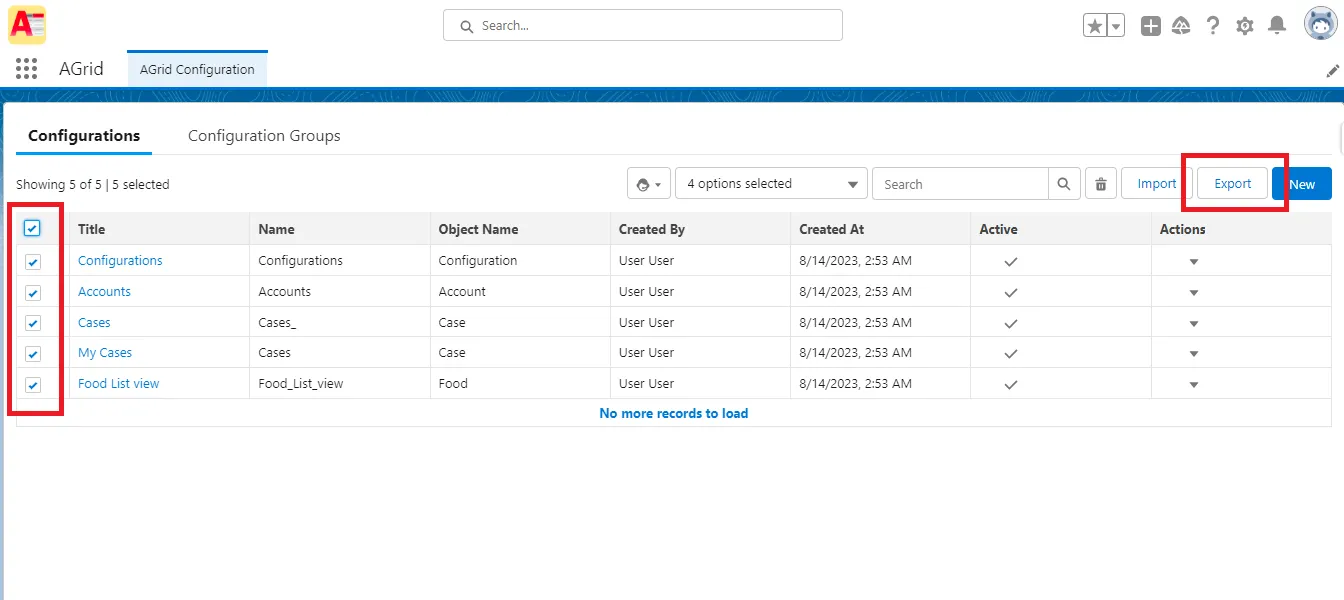
Step 1: Export Configurations from the Source Org
Open the AGrid Configurations tab in the source Salesforce org.
- Select one or multiple configurations
- Click the Export button
- Download the generated JSON file
This file contains the selected AGrid configuration details
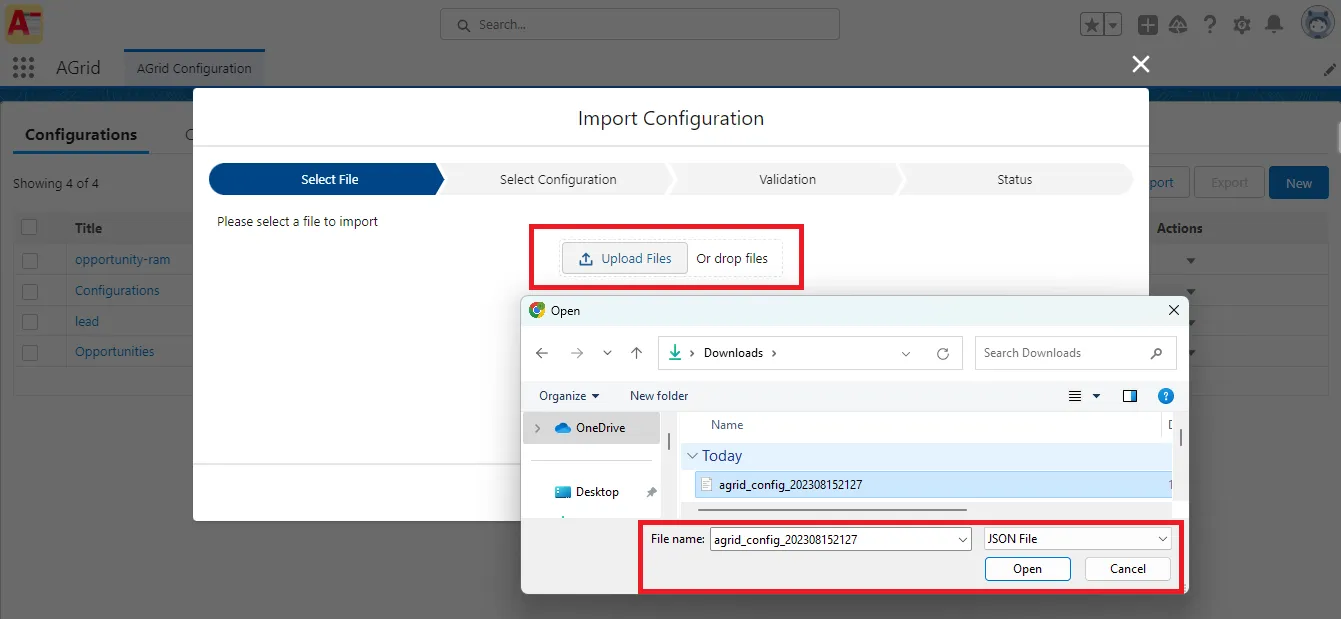
Step 2: Open the Target Org
Navigate to the Salesforce org where the configuration needs to be imported.
From the AGrid Configurations page:
- Click the Import button
- Upload or drag the exported JSON file
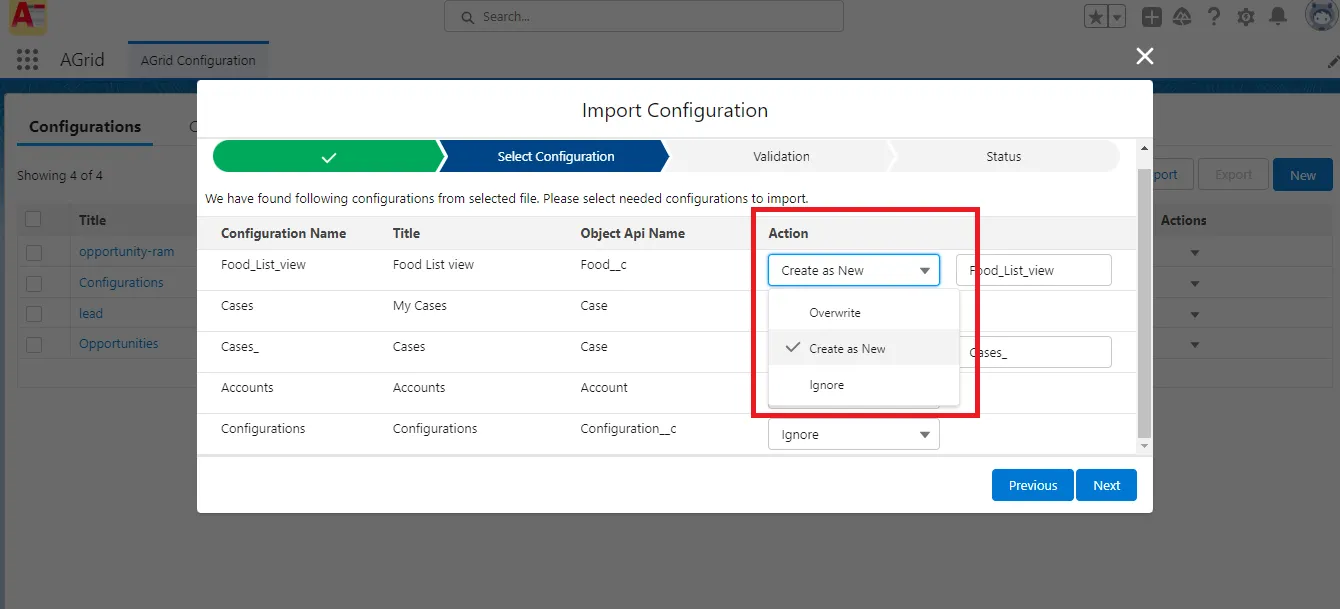
Step 3: Choose the Import Action
AGrid provides three import behaviors:
- Override: Replaces an existing configuration in the target org.
- Create as New: Creates a separate new configuration without affecting existing ones.
- Ignore: Skips selected configurations during import.
This flexibility helps admins safely manage deployments across multiple environments.
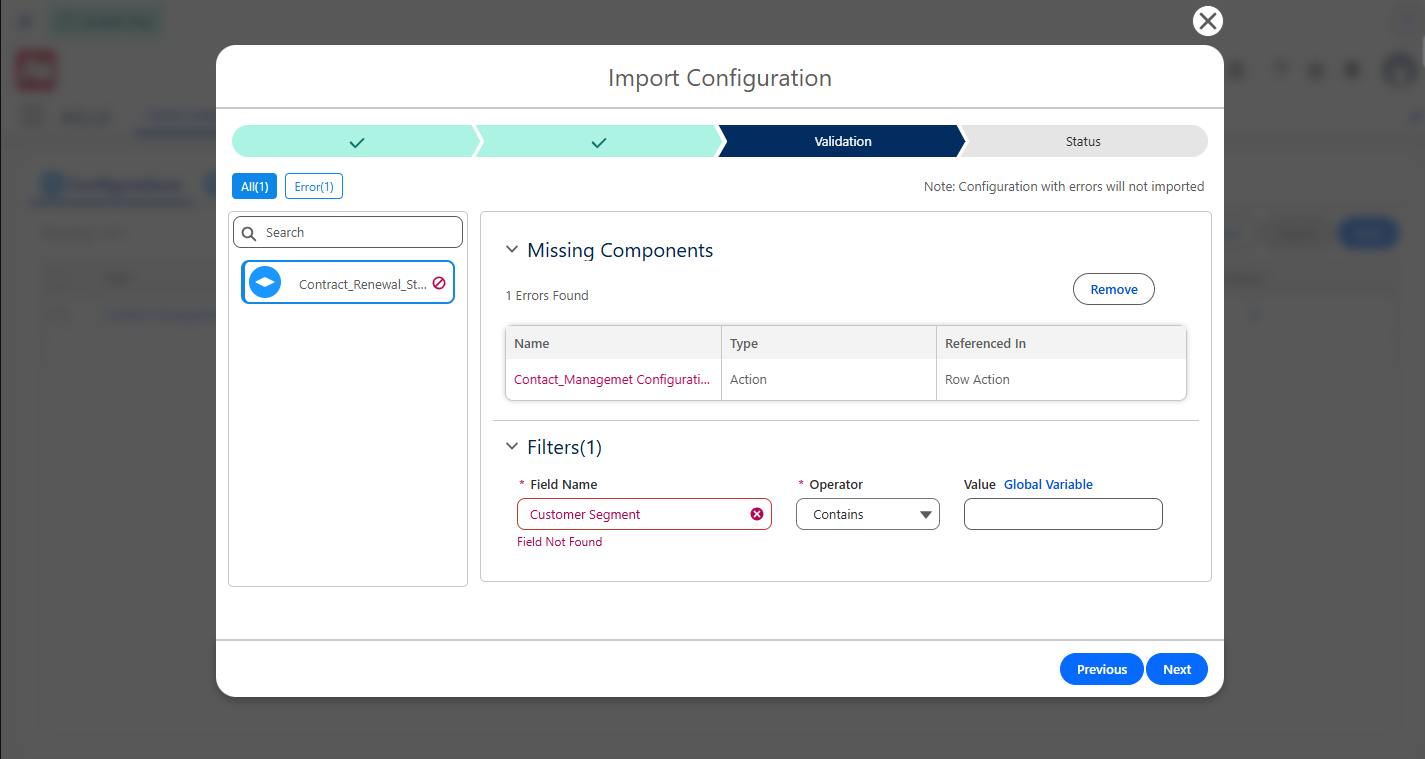
Step 4: Review Validation Results
Before completing the import, AGrid validates the uploaded configuration against the target org.
If required references are missing or unsupported, AGrid displays the issue and the required action. This may include missing objects, fields, actions, filters, views, or other configuration dependencies. For filter-related errors, admins can clear the error and select the valid field values again from the target org before continuing with the import.
For the complete validation checklist, refer to the AGrid Admin Manual.
Important note: Before importing, make sure the required objects, fields, Flows, Aura Components, Lightning Web Components, picklist values, and related dependencies exist in the target org. Some references may require manual review after import.
Step 5: Complete the Import
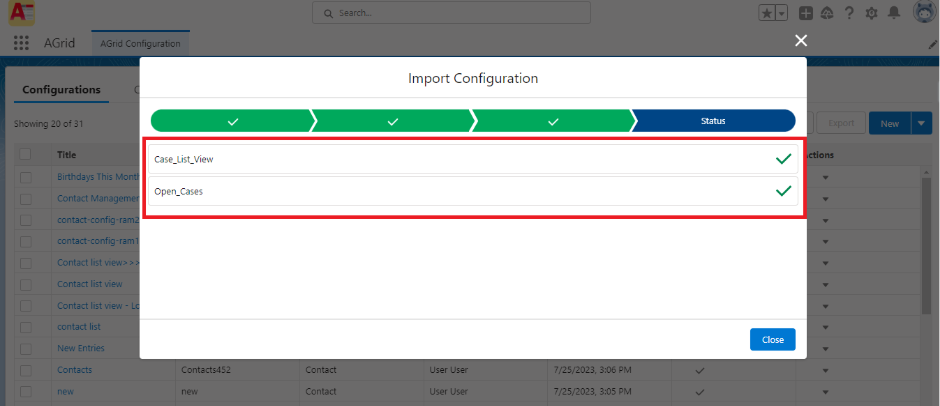
After validation succeeds:
- Complete the import process
- Review the import status summary
- Verify imported configurations in the target org
Step 6: Add the Configuration to Lightning Pages
Once imported, admins can place the configuration on:
- Record Pages
- App Pages
- Home Pages
- Related List sections
using the AGrid List View component inside Lightning App Builder.
Key Capabilities of AGrid
- Configuration Export and Import: Move AGrid configurations between Salesforce orgs using JSON files.
- Validation Before Import: Check for missing or unsupported references before completing the import.
- Support for AGrid Features: Migrate configurations that include Intelligent Related Lists, Conditional Rendering, Group By, Kanban View, Chart View, AGrid Formula fields, Row Actions, List Actions, Views, filters, and Bulk Create settings.
- Configuration Group Migration: Export and import AGrid Configuration Groups between orgs.
- Flexible Import Controls: Choose whether to override, create as new, or ignore configurations during import.
Practical Use Cases
- Sandbox to Production Deployment
An admin builds and tests an Opportunity grid in Sandbox with Kanban View, charts, Conditional Rendering, approval Flow actions, and Intelligent Related Lists.
Instead of recreating the setup manually in Production, the admin exports the configuration and imports it into the target org.
- Multi-Org Salesforce Management
Organizations managing separate Salesforce orgs for regions or business units can standardize list experiences across environments using reusable AGrid configurations.
- Faster Client Implementations
Salesforce consulting teams can maintain reusable configuration templates and deploy them quickly across customer orgs.
- Safer Release Cycles: Validation checks help admins detect missing fields, actions, and dependencies before users encounter broken configurations after deployment.
Conclusion
Maintaining consistent Salesforce list experiences across multiple orgs can become difficult when configurations must be rebuilt manually. Filters, views, actions, grouped data, related lists, and visual settings all add complexity during Salesforce org to org migration.
AGrid’s Export and Import capability gives admins a structured way to move configurations between orgs, validate dependencies, and reduce manual setup effort.
From standard grids to advanced setups with Intelligent Related Lists and Conditional Rendering, AGrid helps teams migrate configurations faster and keep Salesforce experiences consistent across environments.
Ready to Transform with AI?
More Insights for you






Ready to Transform Your Business with Salesforce & AI?
